Contents

Introduction
This document was created intended to guide the end user to configure the FreedomQ application and the related configurations.
Overview diagram
Inbound flow overview
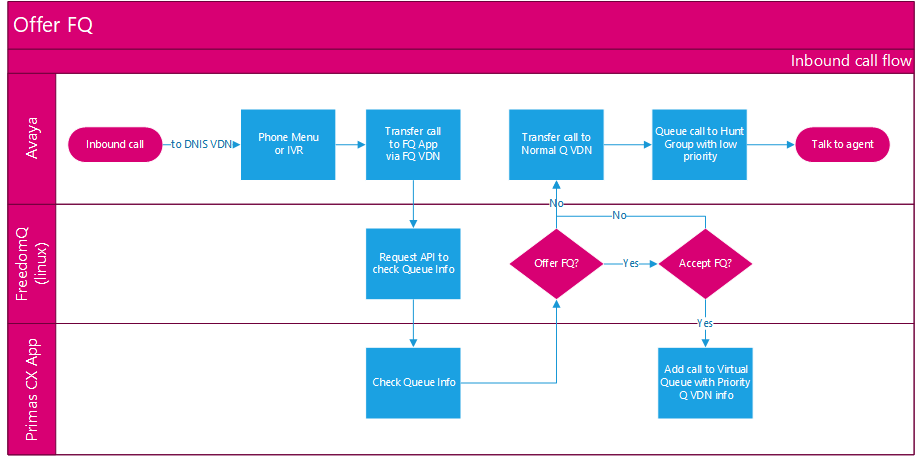
Detail configuration
You must log in to the system using the Administrator account to manage the FQ configuration.
Configure DNIS (Facility)
This is the first VDN that receives the inbound call that helps us to identify the Caller ID (ANI).
The steps to add new DNIS as below:
- Menu navigation: Configuration → Screen Pop→ DNIS
- Click Add button
- Enter the required information and click Update button
Ref: Add new DNIS
Configure Skill Extension
This is the Hunt Group Extension (not Skill ID).
The steps to add new Skill extension as below:
- Menu navigation: Configuration → Screen Pop→ Skill Extension
- Click Add Skill Extension button
- Enter the required information. Make sure:
- Hunt Type is "Hunt Skill"
- Registered checkbox is checked
- Click Update button
Ref: Add new Skill Extension
Configure VDN
The following VDN types need to be added into the system's configuration to make the FreedomQ application works correctly:
- FQ VDN
- Agent VDN
- Priority VDN
- Voluntary VDN
In order to add a new VDN to the system configuration, the main steps as below:
- Navigate to menu Configuration → Screen Pop→ VDN
- Click Add VDN button
- Enter the required information
- Click Update button
Ref: Add new VDN
However, each VDN type has its specific configurations need to be noted as below:
FQ VDN
This helps to determine the department or the queue that the customer wants to connect to. From this VDN, the FreedomQ system can get the queue information associated with this number from FreedomQ configuration. Make sure:
- VDN Type is "FQ VDN"
- Media Type is "Phone Call"
Agent VDN
This helps to determine the queue information and it needs to associate with a Hunt Group. Make sure:
- VDN Type is "Agent VDN"
- Associated DNIS is the DNIS that route the call to this VDN.
- Actual Queue is a Hunt Group extension. This helps the system matches the agents with the Agent VDN. If this value is configured incorrectly, the FreedomQ dashboard can't display the correct agent information to the FreedomQ dashboard.
- Media Type is "Phone Call"
Priority VDN
This is the VDN that the system will transfer the call to when it calls back customers. Make sure:
- VDN Type is "FQ Priority VDN"
- Actual Queue is selected
- Media Type is "Phone Call"
Voluntary VDN
This is the VDN that the system will transfer the call to when customers call back early within an allowed time frame (race period) or customers return after they missed the callback and the callback request is still valid. Make sure:
- VDN Type is "Other VDN"
- Actual Queue is selected
- Media Type is "Phone Call"
Configure Agent Extension
The Agent Extension is an Avaya Station ID. All agent extensions belonging to the FreedomQ Hunt Group need to be added to the system for monitoring.
The steps to add new Agent Extension are as below:
- Navigate to menu Configuration → Screen Pop→ Agent Extension
- Click Add Agent Extension button
- Enter the required information
- Make sure the Registered checkbox is checked
- Click Update button
Re: Add new Agent Extension
Configure Agent Login ID
The steps to add new Agent ID are as below:
- Navigate to menu Configuration → Screen Pop→ Agent
- Click Add Agent button
- Enter the required information
- Make sure the correct Skills extension of the Agent is selected from the Agent Skills box. This helps system determine the agent skills to filter agents from the FreedomQ dashboard as well as check the agent available from a Skill.
- Click Update button
Ref: Add new Agent
Configure Notifier User
A Notifier user is needed for an agent to receive the screen pop.
The steps to add new Notifier User are as below:
- Navigate to menu Configuration → Screen Pop→ Notifier User
- Click Add User button
- Enter the required information
- Click Update button
Ref: Add new Notifier User
Configure Calendar
The calendar allows users to set the working time for the different day of week.
The steps to add new Calendar as below:
- Navigate to menu Configuration → FreedomQ→ Calendar
- Click Add Calendar button
- Enter the required information
- Click Update button
Ref: Add new Calendar
Configure FreedomQ
Manage FreedomQ configuration
This is a very important step that helps the system understands call routing when the system offers a callback to a customer or when the system calls the customer back.
The steps to add new FQ configuration as below:
- Click Add FQ Config button
- Enter the required information.
- General
- FQ Name: It should be the queue name.
- Offer FQ: Turn on/off FQ Offer for this queue.
- Detect Missed Call: Indicates whether the system will detect the missed call based on the phone number to offer the features for the missed calls.
- Detect Early Call: Indicates whether the system will detect the early call based on phone number to offer the features for the early calls.
- Auto Callback: Indicates whether the system will call back the caller automatically based on the estimated waiting time and queue position. If this option is off, a user will need to call back the caller manually from the FreedomQ dashboard.
- Play Queue Position: Indicates whether the system will play the current number of calls in queue to the caller.
- Play EWT: Indicates whether the system will play the current estimated waiting time of the queue to the caller.
- Offer Last Agent: indicates whether the system will offer the last agent routing feature to the caller.
- Role: Select the user roles that can manage the FQ Config for the queue. If the user is a supper administrator, it will display all FQ Configs to the user.
- Call Flow
- DNIS: The first Device ID will handle the inbound calls. It is DNIS VDN in the VDN configuration.
- FQ Device ID: The Device will route the call to FQ application. FQ Device ID needs to be a unique number in FQ config. It is FQ VDN in the VDN configuration.
- Normal Q Device ID: The Device will route the call to a normal queue. The FQ application will route the call to this device if it doesn't offer a callback to the caller or the caller denied the callback offer. Normal Q Device ID needs to be a unique number in FQ config. It is Agent VDN in the VDN configuration.
- Priority Q Device ID: The Device will route the call to a priority queue. The FQ application will route the call to this device when it calls back the caller and the caller answer the callback call. It is FQ Priority VDN in the VDN configuration.
- Voluntary Q Device ID: The Device will route the call to a priority queue in the case of a missed call or the caller returns too early before the estimated callback time. It can be the same as Priority Q Device ID.
- Skill Extension: The monitored skill for the wait time and calls in queue. This is the actual queue that the Normal Q and Priority Q devices will transfer the call.
- Offer FQ Threshold
- Min Calls in Queue: The minimum calls in queue threshold. The system won't offer the callback if the number of calls in the queue is less than this value and the EWT threshold is not met.
- Max Calls in Queue: The maximum calls in queue threshold. The system won't offer the callback if the number of calls in the queue is over this value and the EWT threshold is not met.
- Min EWT (min): The minimum estimated wait time (EWT) threshold. The system won't offer the callback if the EWT in minutes is less than this value and the calls in queue threshold is not met.
- Max EWT (min): The maximum estimated wait time (EWT) threshold. The system won't offer the callback if the EWT in minutes is over this value and the calls in queue threshold is not met.
- Note: EWT can be the Average Wait Time or Oldest Wait Time ups to the General FQ Configuration.
- Early Call Threshold (min): If the person calls back before the estimated callback time but within this time period, the system allows sending the call to a priority queue.
- EWT Buffer (min): When the system offers the callback, it will prompt the caller to the EWT is the current EWT plus this buffer value.
- Check EWT and Calls in Queue independently: Indicates whether the system checks both calls in queue and EWT thresholds are met before offering FQ or just needs one of 2 conditions to meet.
- Call back
- Caller ID: The calling phone number will be displayed as the Caller ID for the callback call.
- Number of Attempts: The number of times the system will try to make the callback if the call gets FAILED signal when the system calls back the customer.
- Max Pending Outbounds: If the number of pending calls is over this value, don't make a new outbound call for the callback. A callback call is pending if it is active and has not been delivered to an agent extension. This value should equal the number of working agents in the queue. If this value is ZERO, the auto callback will be disabled.
- No Ans. Re-attempt (min): The time between each rescheduled callback if ring no answer. (minute)
- Busy Re-attempt (min): The time between each rescheduled callback if busy. (minute)
- Queue Threshold (min): Stop auto callback if the estimated wait time is over this threshold (minute)
- Schedule
- Calendar: The calendar will be applied for this FQ config.
- After-hours: What should the system do after normal working hours (offer FQ, transfer to Custom Destination or play an announcement)?
- Exception:
- Apply To: This exception will be applied to normal working days or non-working days.
- From: The start time of the exception.
- To: The end time that the exception.
- Call Routing: How the call will be routed in this time range. Can be one of the following values:
- Inherit: inherit from the parent configuration.
- Offer FQ: offer callback for the inbound calls during this time range.
- Transfer call to Queue: transfer the inbound calls to the Normal Queue during this time range.
- Play Announcement: play an announcement to the inbound calls during this time range.
- Transfer call to Custom Destination: transfer the inbound calls to a custom destination during this time range.
- Note: If Minimun EWT and Minimun Queue Position = 0: it always offers FQ.
- Click Save or Save and Go back button
Manage User and Permission
Manage Role
A Role is a group of permission.
The steps to create a new role:
- Navigate to menu Configuration → General→ Role & Permission
- Click Add Role button
- Edit a Role Name.
- Click Save Role button
The steps to edit permission for a role
- Navigate to menu Configuration → General→ Role & Permission
- Select a Role in the right panel of the page.
- Edit permission of the selected role by selecting the pages that you want to assign to the role.
- In the default page dropdown, select a page that assigned permission to this role. This page will be automatically shown to the user of the role after the user of the role logged in successfully.
- Click Update Role Component button

Manage User
The steps to add a new user:
- Navigate to menu Configuration → General→ Users
- Click Create User button
- Enter the required information.
- Select the user's roles.
- Click Create User button

Ref: Manage user's role and permission
Other General FQ Configurations
General Configuration (this section only needs to configure once and for a technical person only)
Offer FreedomQ: Turn on/off FQ Offer feature for all queues.
- Detect Repeat Caller: Indicates whether the system will detect the repeat caller based on phone number to offer the features for the repeat calls.
EWT Source: This indicates that the system will get the queue wait time information from CTI message calculation, or from CM integration.
EWT Calculation By: Choose the calculation algorithm for the system to estimate the wait time. It can use the AVG wait time or the Oldest call wait time. If EWT Source = CM, EWT Calculation By is always the Oldest call wait time.
EWT Time Window (min): If EWT Source = CTI and EWT Calculation By = AVG Wait Time, this value tells the system the time window that the system will calculate the wait time for the calls that already went out of queue within this time window.
EWT Call Count: If EWT Calculation = AVG Wait Time, this will tells the system how many last calls already went out of the queue that it will use to calculate AVG wait time.
Calls in Queue Source: This indicates that the system will get the calls in queue information from CTI message calculation, or from CM integration.
If you select EWT Source = CM, you need to config integrate with OSSI at Configuration → Screen Pop → CTI Link page. Tick the check box "Integrate CM API". CM API URL: The API URL to integrate with CM. Delay In Millisecond Between CM Requests: When the system sends requests to the OSSI API, it will set a delay between the requests. Remove Unstaffed Agents: When the system sends a request to CM API for queue information and the API returns the list of logged-in agents, should the system remove the agents that are not in this list from the agent logged-in list in the system? 
|
Troubleshooting
The FreedomQ application doesn't offer FQ when the thresholds are met
- Make sure the "Offer FQ" toggle is ON.
- Make sure the call routing such as FQ Device ID, Normal Device ID, and Skill Extension is configured correctly
- Make sure the Offer FQ threshold such as Min Calls In Queue, Min EWT is correct.
- Make sure the Calendar in the Schedule section is configured correctly. If the current time is a non-working hour from the calendar configuration, and the setting of After-hour is not "Offer FQ", it won't offer FQ.
- Make sure it doesn't fall into an exception configuration.
- Make sure the toggle "Check EWT and Calls in Queue independently" is set correctly.
The FreedomQ application doesn't say the estimated wait time or queue position to the caller
- Make sure the "Offer FQ" toggle is ON.
- Make sure the "Play EWT" is ON.
- Make sure the "Play Queue Position" is ON.
- Make sure the queue is met the Offer FQ threshold configuration.
The system always offers FQ
- Make sure the Min Calls in Queue is greater than zero.
- Make sure the Min EWT is greater than zero.
- Make sure a Calendar is selected
- Make sure it is not the case if the current time is after-hour and the After-hour configuration is Offer FQ.
The system doesn't do the callback automatically
- Make sure the Auto Callback toggle is ON
- Make sure the Max Pending Outbounds is greater than zero
- Make sure the number of pending calls is less than Max Pending Outbounds
- Make sure the Estimate waiting time is less than Queue Threshold
Related articles
Quick Start Guide Primas CX Web and Notifier
Primas CX Web Application User Guide