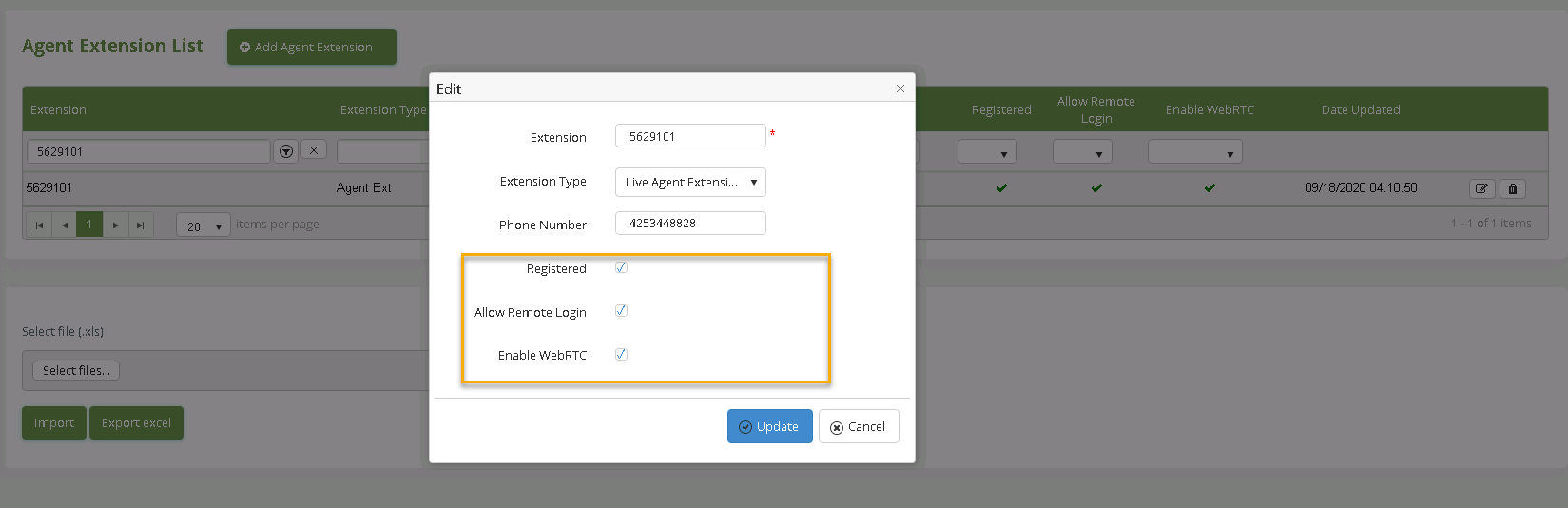
This document guides how to configure and login to a Web RTC extension
Step by step
Step by step

Make sure the WebRTC connection icon from the top-left corner of the agent page is green (connected). If it is red, please try to refresh the page or contact your supporter.
When an incoming call delivered to the avaya extension, the call control will notify a new call. It may take a few seconds for Avaya to forward the call to Asterisk and send it to WebRTC web page. This time, the call control will say "Connecting...", it means the WebRTC is waiting the call from Asterisk. When the call delivered to WebRTC, it will display Accept button for agent to accept the phone call.
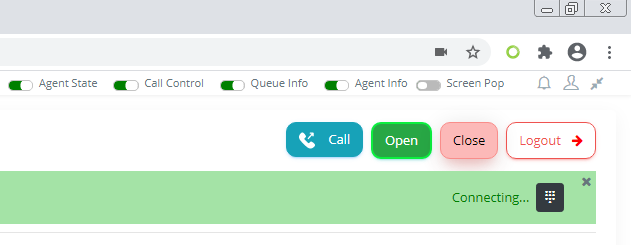
When accepting the phone call, the call control automatically sends the required key which configured from Avaya EC-500 to accept the phone call (e.g the pound key). This key is configured from the Agent Feature page.
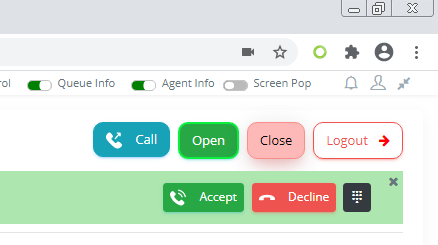
After accept a phone call
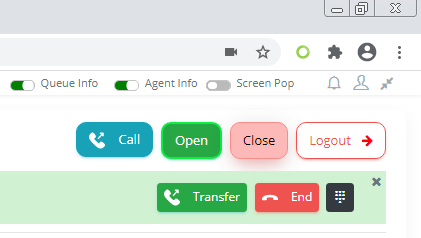
Transfer (it does not work perfectly now)
Click Transfer button, enter the avaya number which need to be dialed with the 90 prefix, click Call button

After transferring, the call control from the transferee still be on the screen (we will fix this soon)
From the Primas Call Control, click Call button, enter a phone number, cl;ick Dial button
Note: it may take a long time to connect to Asterisk for now.

Web RTC asterisk extension list
| Description | Asterisk Extension | Password |
| EPIC Training Help 1 | 4253448828 | 123456 |
| EPIC Training Help 2 | 4153777014 | 123456 |
| 100 reseved extensions | 2067070600 - 2067070699 | 123456 |