The LinkScopeWeb management interface is browser-based and available to any user that is on the network physically or virtually (VPN)
It can be accessed by opening a browser and entering the following URL http://YOUR-SERVER-NAME/LinkScopeWeb
Upon first opening, you will be presented with a login (Please contact Primas or your support team for the username and password)
The Agent Extension is an Avaya Station ID (or Position ID). In order to add an agent extension into LinkScope Web Application, perform the following steps:
|
An Agent ID is an Avaya Agent Login ID. To add an agent ID into LinkScope Web Application, perform the following steps:
Notifier account is used to login from LinkScope Notifier at Agent's desktop PC to receive screen pop.
 button, the Add popup is displayed.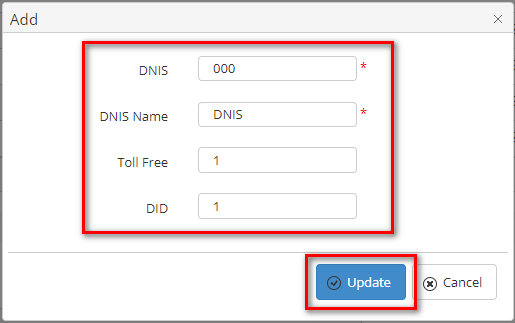

The VDN is...
The Skill Extension is...

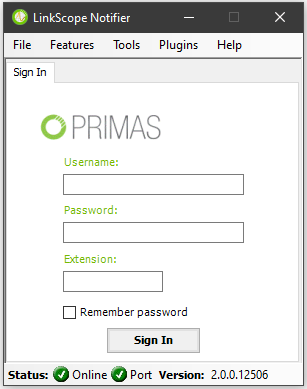
Linkscope Notifier needs a plugin to show screen pop. Normally, this configuration already set by the IT team.
Linkscope Notifier needs to know the Application server to receive screen pop from the server. Normally, this configuration already set by the IT team.
The agent needs to sign in into LinkScope Notifier to receive a screen pop.
If everything is set up correctly when a call rings to the agent, the agent should see a screen pop as the capture below: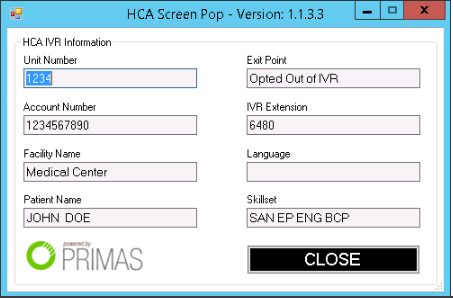
| Upon reopening Notifier, agents will discover that their credentials have been saved and that they can simply click Sign In without having to re-enter their credentials and Extension. |
Sign out from LinkScope Notifier
In order to exit the Notifier client, select File → Exit.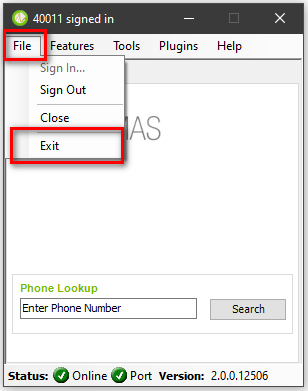
| Upon reopening Notifier, agents will discover that their credentials have been saved and that they can simply click Sign In without having to re-enter their credentials and Extension. |
| Site | Server name | Server IP | LinkScope WebApp |
| Orange Park | XRPSWPAPPPLS01a | 10.0.164.161 | http://XRPSWPAPPPLS01a/LinkScopeWeb |
| Nashville | FWPSWPAPPPLS01a | 10.64.72.161 | http://FWPSWPAPPPLS01a/LinkScopeWeb |
| Richmond | FWPSWPAPPPLS01b | 10.64.72.163 | http://FWPSWPAPPPLS01b/LinkScopeWeb |
| Tampa | FWPSWPAPPPLS01c | 10.64.72.165 | http://FWPSWPAPPPLS01c/LinkScopeWeb |
| Houston | FWPSWPAPPPLS01d | 10.64.72.167 | http://FWPSWPAPPPLS01d/LinkScopeWeb |
| San Antonio | XRPSWPAPPPLS01b | 10.0.164.163 | http://XRPSWPAPPPLS01b/LinkScopeWeb |
| Dallas | XRPSWPAPPPLS01c | 10.0.164.165 | http://XRPSWPAPPPLS01c/LinkScopeWeb |